Start with the result
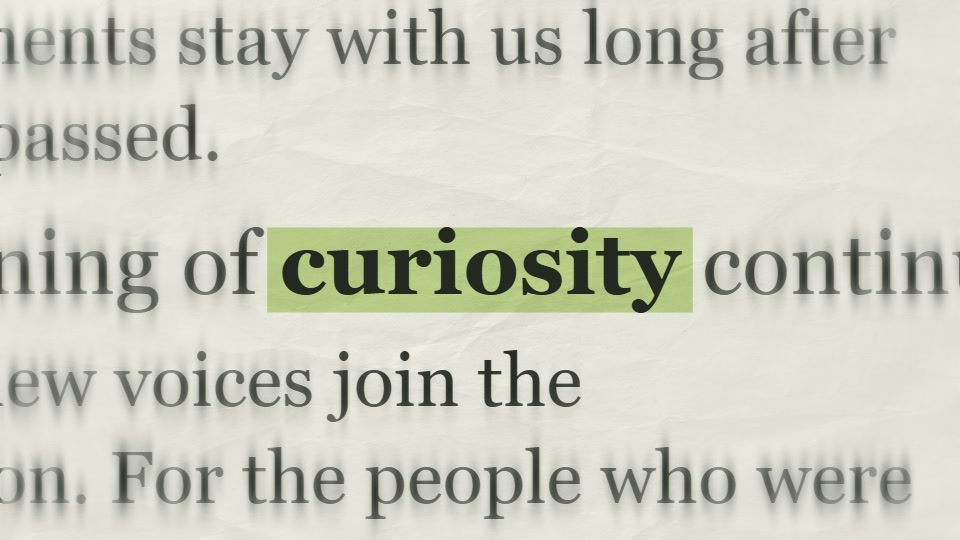
The example keeps curiosity in one position while the surrounding print changes. The cream paper and pale green highlight give the sequence a quiet editorial look. It lasts four seconds so you can inspect the changes; you can use a shorter section in your finished edit.
The point of this shot is to introduce an idea, not to make the audience read the background. Watch it once at normal speed. Your eye should find the highlighted word immediately and stay there through each change.
What makes this a text match cut?
A match cut connects adjacent shots through a recognisable visual relationship: a similar shape, composition, action or position. A text match cut uses a word or phrase as that relationship. The surrounding frame can change while the text gives the viewer a consistent place to look.
There are two different workflows worth separating. You can align a word across genuine screenshots or footage in a video editor. Or you can create a designed newspaper effect around your own phrase. The Text Match Cut tool makes the second kind: generated page layouts, not retrieved newspaper clippings.
For an explainer, the designed treatment can establish a theme. For a documentary claim, use the actual source material with accurate attribution. Decorative newspaper text is not evidence that a publication printed your phrase.
Ask what connects the shots. Repeating a transition alone does not establish a useful match. In this project, the word connects the changing pages; your narration connects that word to the next scene.
1. Choose the phrase and the destination shot
Write the line that will follow your title before changing any controls. For example: “Curiosity begins with noticing something ordinary.” The title introduces the concept; the next shot can show the object or detail you are discussing. This gives the animation a reason to be in the edit.
Use one word or a compact phrase for the first version. “Curiosity” is easier to recognise during quick page changes than a full sentence. If the wording needs more space, split the thought between narration and a separate caption instead of shrinking the important phrase until it becomes unreadable.
Decide whether the finished video will be landscape or vertical. This example starts in 16:9. Create the portrait version in the editor rather than cropping a finished landscape clip and hoping the word remains comfortable to read.
- Theme: curiosity.
- Visual job: introduce the central idea.
- Next shot: a subject or object that illustrates that idea.
- Audio: add your own narration or music in the final editing timeline; these examples are silent.
2. Recreate the newspaper treatment
Open the Text Match Cut editor and replace the sample text with curiosity. Use the following values for the landscape example. They are starting settings for this project, not a rule for every phrase.
| Control | Value |
|---|---|
| Text | curiosity |
| Format | 16:9 |
| Duration (seconds) | 4 |
| Animation speed | 1 |
| Page change rate | 0.45 |
| Type size | 1 |
| Typeface | Editorial serif (Georgia) |
| Font variation | Keep one font |
| Paper texture | 0.35 |
| Surrounding print blur | 0.8 |
| Paper color | #f1f0e5 |
| Highlight color | #cde39d |
Select Keep one font under Font variation before choosing Editorial serif (Georgia). The typeface control is disabled while font variation is enabled. A fixed font keeps the silhouette of the word consistent; varying fonts adds another layer of change around the same aligned position.
Keep the surrounding print blurred enough that it supports the word. Texture adds paper detail, while blur reduces the distraction of nearby lines. These are separate decisions: increasing texture is not a substitute for giving the headline more contrast.
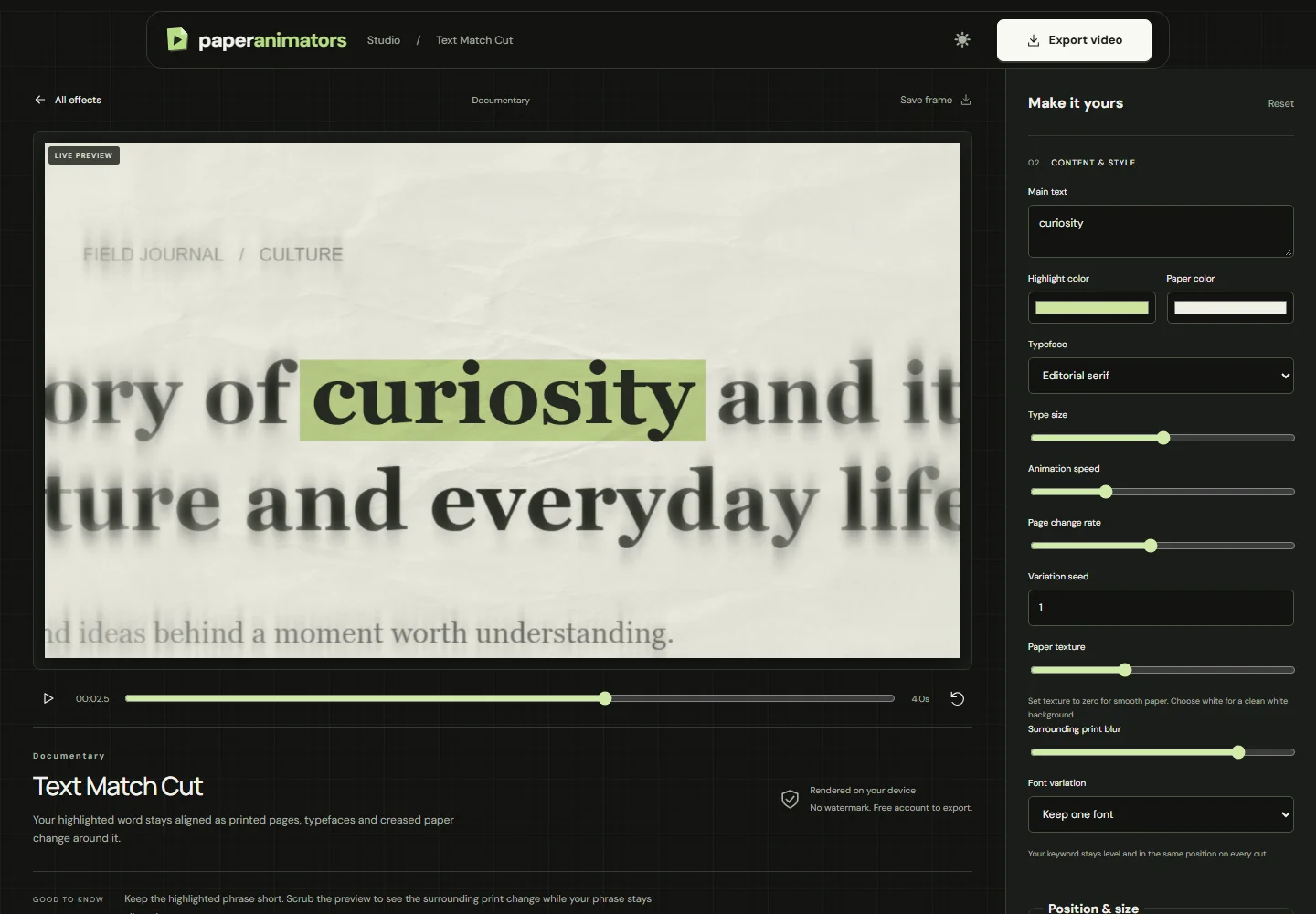
The sliders use numeric values shown here. If a phrase looks too large, adjust Type size after choosing your output format. Recheck the whole phrase, including the highlight, at both the beginning and end of the sequence.
3. Set the rhythm before adding more decoration
Play the four-second example from the start. Animation speed changes the pace of the animation; Page change rate affects how often the printed composition changes. Duration sets the length of the exported clip. Treat these as separate controls, and change one at a time so you know what improved the result.
Start with the settings above, then try a slower Animation speed if the word is difficult to follow. If the background still feels too busy, reduce the Page change rate. Avoid deciding from a paused frame alone: a beautiful still can become tiring when several versions appear quickly.
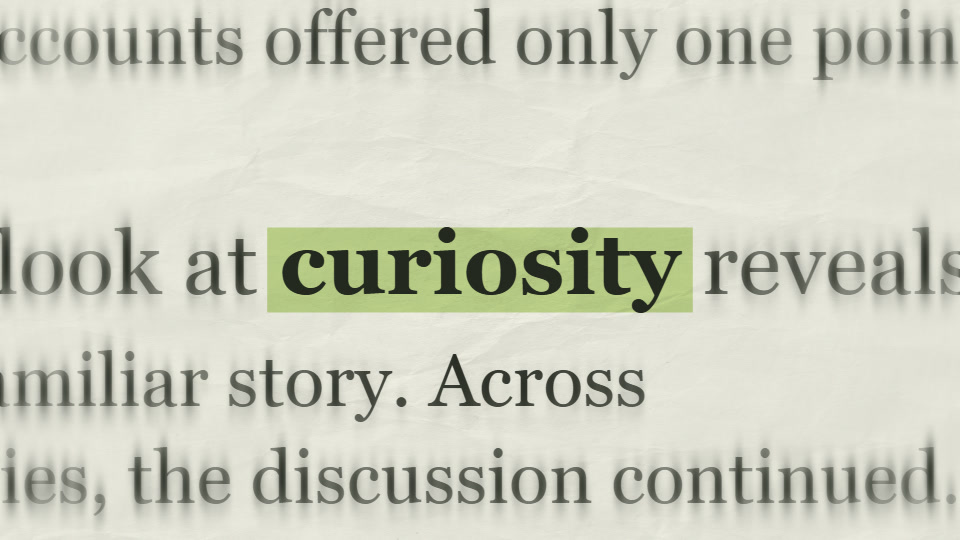
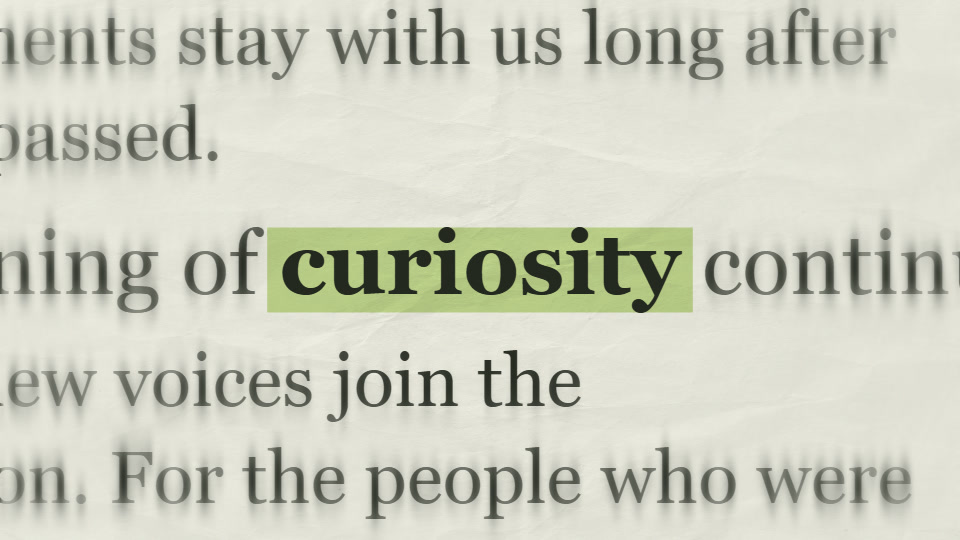
The three stills show the word occupying the same part of the frame. Scrub the editor to inspect alignment, then watch at normal speed again. The final check is whether someone seeing the phrase for the first time can read it without pausing.
For a spoken introduction, place the title around the moment the narrator says the keyword. Leave a brief readable hold before cutting to the next visual. Exact timing depends on your sentence and delivery; the four-second example is material to edit, not a required shot length.
4. Make a vertical version deliberately
For a Reel or Short, switch Format to 9:16 Vertical before the final polish. The second example keeps the same word and colours but uses Animation speed 0.75. Its slower pace gives the viewer more time to settle on the phrase.
Look at the preview at approximately phone size. Keep the word away from the top and bottom areas where captions and platform controls may appear. Those interface areas vary, so check your actual destination app rather than relying on a fixed “safe zone” number.
If you plan to add subtitles, decide where they will sit before exporting. Two competing blocks of text can make the shot harder to understand. A short keyword with narration often needs less additional on-screen copy.
5. Assemble a six-second story opener
This sequence combines three separately made clips. It is an editing example you can reproduce in your timeline, not a one-click preset inside the Text Match Cut tool.
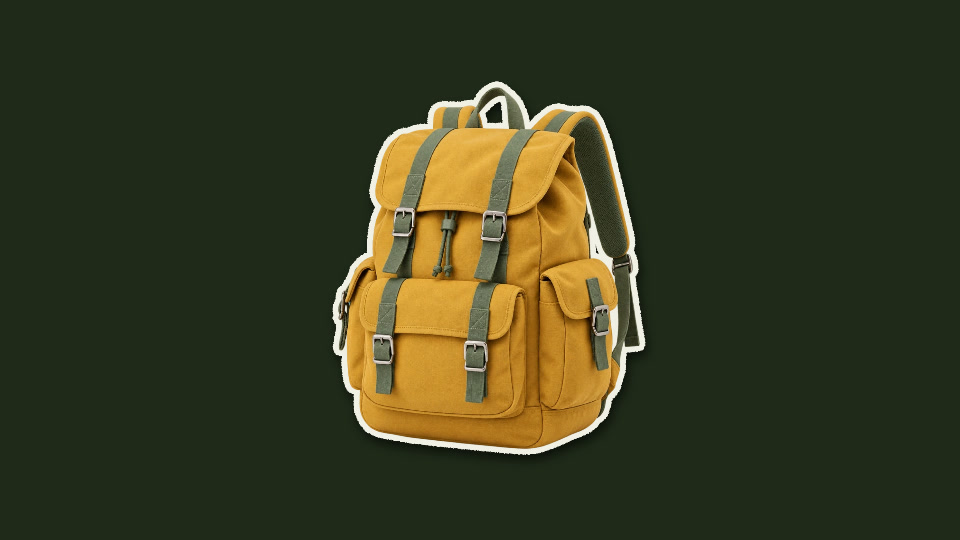
- 00:00–00:02 — Show the subject. Use the first two seconds of the backpack cutout clip. Its gentle movement introduces the object without hiding its shape.
- 00:02–00:04 — Name the idea. Use two seconds of the curiosity text clip. The highlighted word creates an editorial pause between the image shots.
- 00:04–00:06 — Reveal the next beat. Use the first two seconds of the backpack crumple reveal. With an unfold time of 1.5 seconds and speed 1, the shot leaves a short visible hold before the end.
This example reuses one subject to show the relationship between the effects. For your own story, the final reveal can introduce a second relevant object. Keep the visual connection understandable and leave enough time to identify whatever appears.
Build the image shots with the paper cutout workshop and crumple reveal workshop. Import the clips into your editor, trim them and add your soundtrack. The hard cuts shown here let the change of shot do the work.
6. Export and inspect the actual file
Select the output quality, then Export video. A free account includes three lifetime 720p video exports without a watermark; unlimited plans add 1080p. Confirm current options on the pricing page. Keep the tab open while the clip renders.
The output is a finished video file. It is not an editable CapCut, Premiere Pro or After Effects project. MP4 is available when supported, with WebM as a fallback. Check that your editing application accepts the downloaded format before planning a larger batch.
Watch the downloaded file from beginning to end. Check word spelling, page changes, framing, duration and the final frame. Then import it into your timeline and listen with the narration. A clip can look good on its own but feel mistimed when placed beside another shot.
When the result does not feel right
- The word is difficult to follow.
- Shorten the phrase, keep one font and reduce the pace. Make the next change only after watching the full preview again.
- The background competes with the headline.
- Increase Surrounding print blur and check highlight contrast. If too many page changes remain distracting, lower Page change rate.
- The typeface selector cannot be changed.
- Select Keep one font under Font variation. The editor intentionally disables the selector when it is varying typefaces.
- The vertical clip feels crowded.
- Set 9:16 first, then check Type size. Avoid treating a landscape crop as a finished portrait layout.
- I need the word from real articles.
- Collect and attribute the actual source images, then align them in your editing application. This generator does not search an archive or authenticate quotations.
- The export fails or downloads in another format.
- Keep the browser tab active, try a shorter clip and check the available quality. Follow the export support instructions for browser-specific issues.
Choose the next shot
Use a text match cut when the repeated word is the connection the audience should follow. Use magazine lettering when the title itself should assemble into a collage. Use a photo cutout when the person or product needs to remain visible throughout the shot.
Keep your first version simple: one phrase, one consistent treatment and a clear next shot. Once that works, change the paper, pace or font variation to fit the story. Save the settings you used so the next chapter can follow the same visual language.
Ready to make your own version?
Open the editor ↗