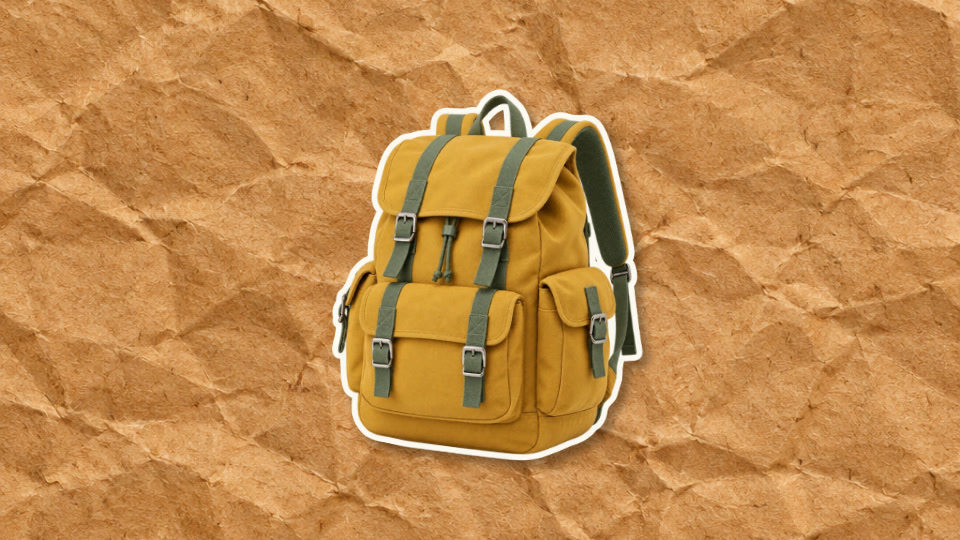
A simple subject, with room to move
The bag remains visible throughout this shot. A cream edge separates it from the dark green background, and a restrained wiggle stops the image feeling completely static. This makes a useful companion to narration or a product description.
Decide what viewers need to see before choosing motion. If the important detail is a clasp, logo or label, the shot needs a readable hold. Strong movement can undermine that purpose even when it looks lively.
1. Prepare the image and inspect the edges
Use a photograph you have permission to edit. For this workshop, the sample backpack already has a transparent background. In your own project, use the editor’s background removal when needed, then inspect the result before applying the paper treatment.
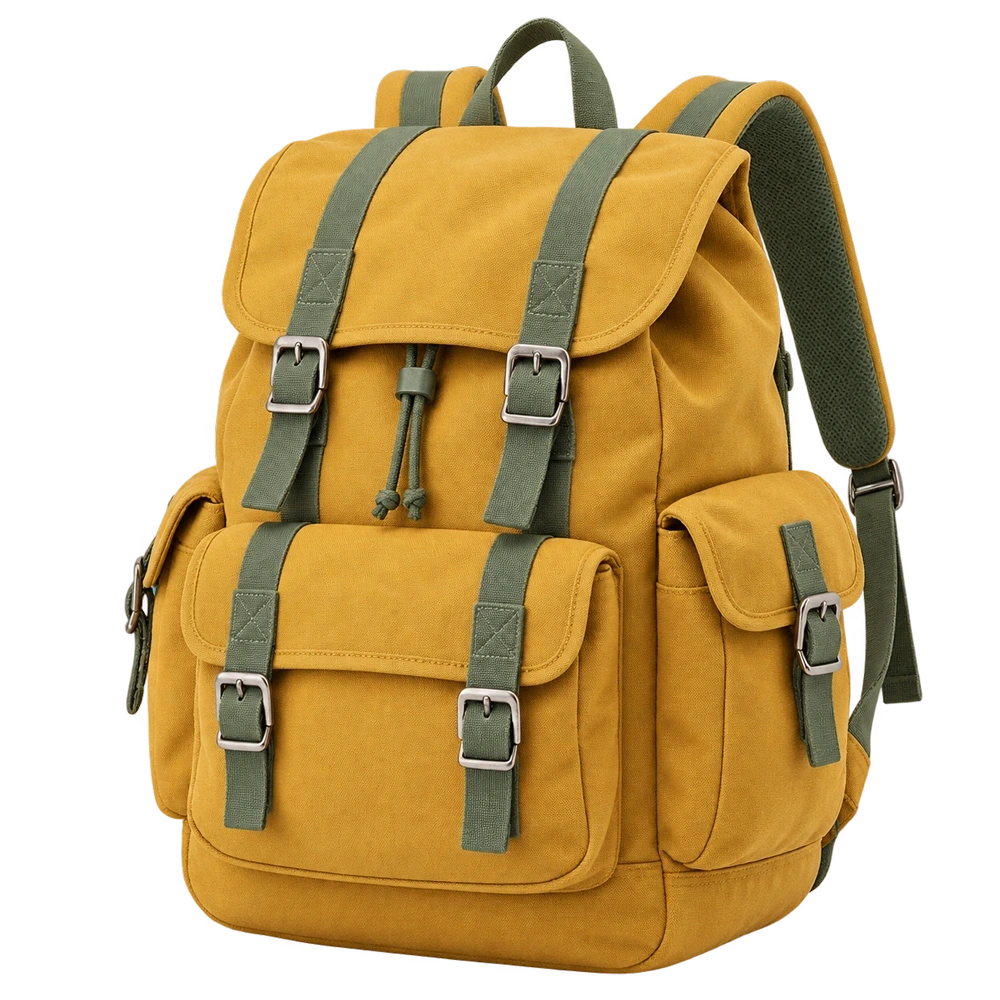
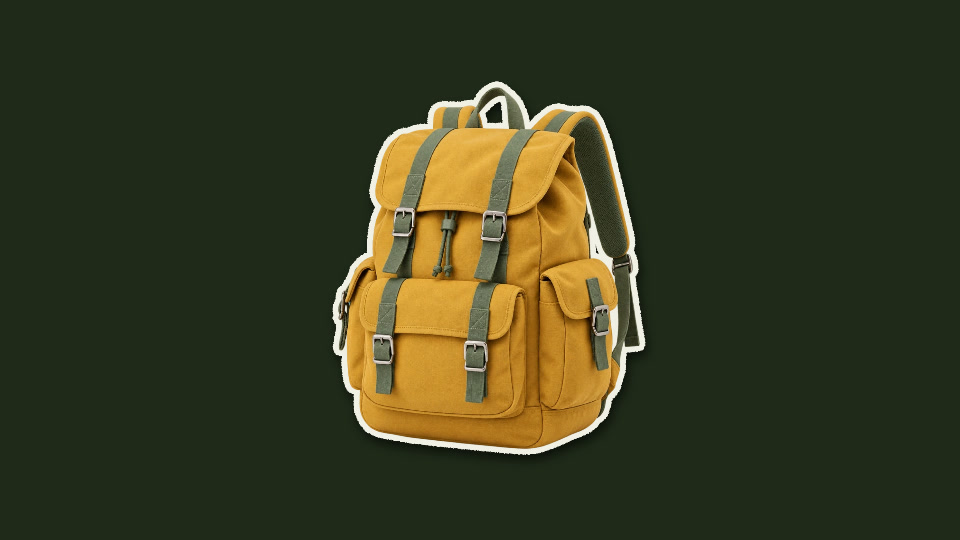 AFTER / PAPER STYLE
The “before” image is a prepared transparent cutout, not an untouched source photo. The “after” image adds the paper edge, shadow and background. This comparison shows styling, not a claim about automatic background-removal quality.
Look around handles, straps, hair and narrow gaps. A small leftover patch of background can become more visible when a light border is added. If the input has blurred edges or missing detail, a larger export will not restore them.
2. Set the material and movement
Open Paper Cutout, upload your prepared image and start with Original photograph. This preserves the subject’s colours while the border provides the paper effect.
| Control | Value |
|---|---|
| Subject treatment | Original photograph |
| Subject framing | Full subject |
| Paper border width | 12 |
| Torn edge detail | 0.35 |
| Shadow strength | 0.5 |
| Movement | Gentle wiggle |
| Motion strength | 0.25 |
| Motion speed | 0.75 |
| Subject size | 0.9 |
| Background | #202a1a |
| Paper edge color | #f1f0e5 |
| Duration (seconds) | 4 |
Use the border to separate the object, rather than overwhelming small details. Gentle wiggle and low Motion strength keep the shot quiet. If the narration is already busy, compare the result with Still before deciding that movement is necessary.
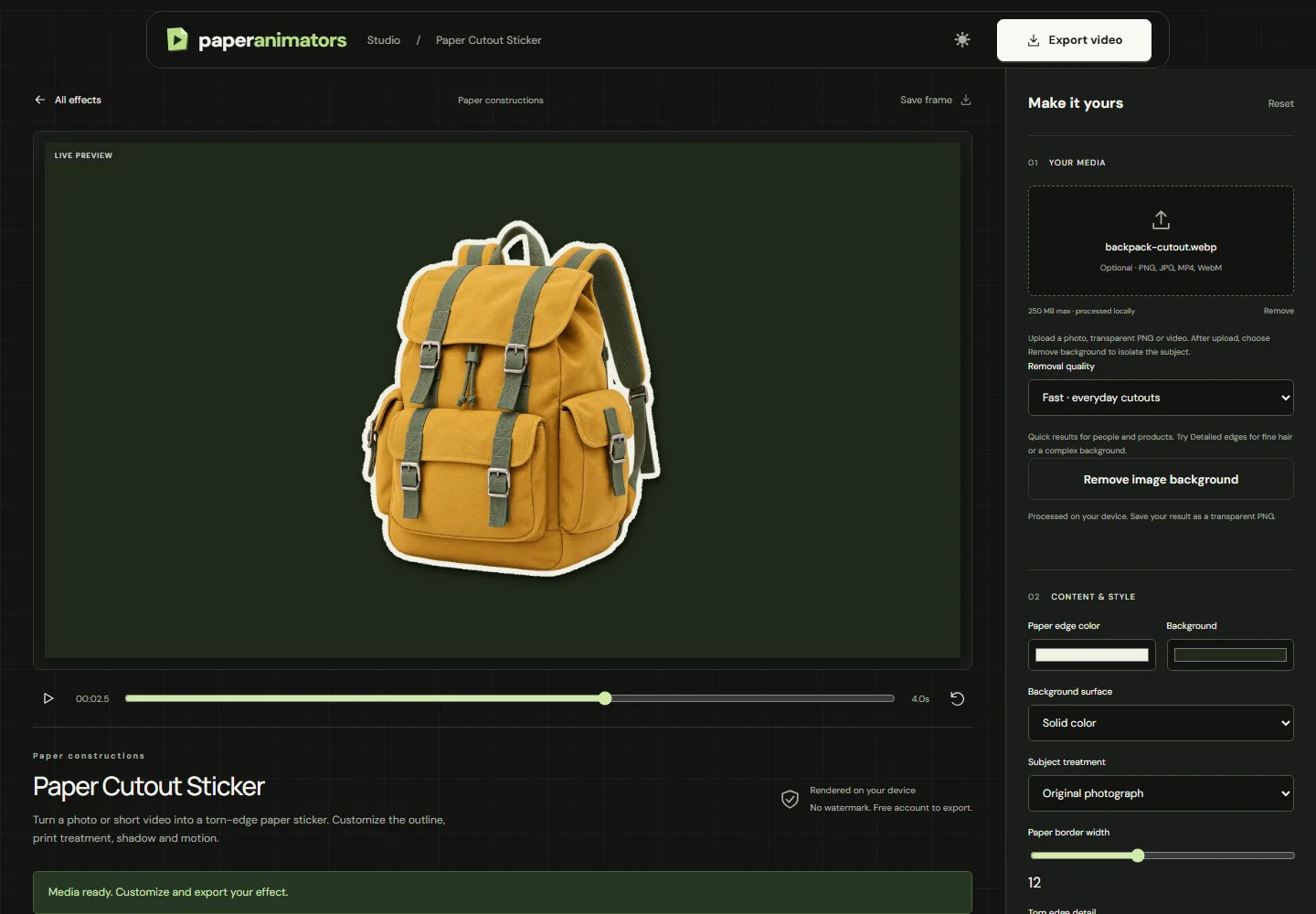
3. Frame the complete movement
The example is landscape 16:9. For a Reel, set 9:16 before adjusting Subject size and position. Leave room for the paper edge and the entire range of movement. Check the beginning, middle and end rather than judging only the centred resting pose.
Keep the subject clear of the area where you will add captions. If another editor will crop the clip again, make that decision early. Exporting a tightly framed shot and then cropping it usually leaves less room for both movement and text.
Use a solid background when this clip will fill the frame. If the subject must sit over other footage, choose the available green-screen option and remove the green in your editing application. A normal MP4 is not a transparent video. The tool also supports a transparent PNG for a still cutout.
4. Give the shot a purpose in the timeline
Place this clip where the viewer needs to identify the object. In a narrated explainer, start the shot slightly before the sentence about that object so there is time to recognise it. In a short opener, two seconds may be sufficient for a simple subject, but a detailed product may need longer.
For the six-second workshop sequence, use the first two seconds, then cut to the word curiosity. Follow the Text Match Cut tutorial for the title and assembly. Make the duration follow the spoken line rather than forcing every shot into the same length.
When ready, choose a supported video format and quality, export, then inspect the downloaded file. Free accounts include three lifetime 720p video exports; check current export plans before making a large batch.
Common fixes
- The paper outline looks too heavy.
- Reduce Paper border width, then inspect small gaps. Lower Torn edge detail if the silhouette looks noisy.
- The subject looks restless.
- Lower Motion strength and Motion speed. Compare Gentle wiggle with Slow rocking or Still.
- The shadow makes the subject look muddy.
- Reduce Shadow strength and check the background colour. A dark subject on a dark background may need more separation.
- The cutout is cropped during movement.
- Reduce Subject size or adjust its position, then preview the full motion again in the final aspect ratio.
If the subject should arrive dramatically instead of staying visible, continue with the paper crumple reveal project.
Ready to make your own version?
Open the editor ↗